The History & Notes "Noise" Issue in Xero New Invoicing
Disclaimer: This article was generated using AI, please do your own fact checking.
TL;DR: Xero Invoice History "Noise"
The Issue: Xero’s modern audit trails are heavily cluttered with "noise" (hundreds of repetitive log entries for a single invoice). This data bloating hides critical human changes and makes financial audits time-consuming.
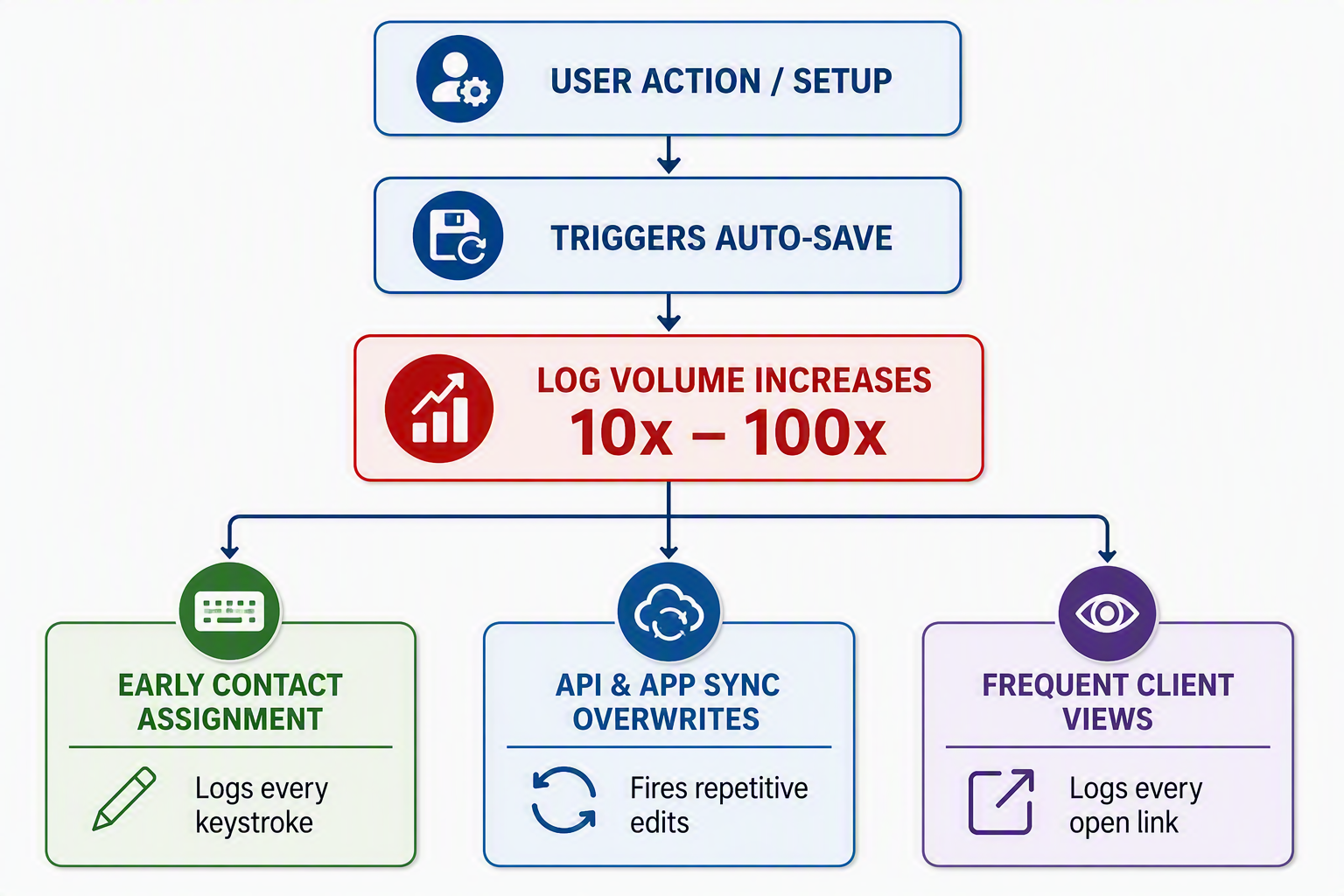
The Primary Cause: Continuous Cloud Auto-Save. The moment a contact name is added to a draft, Xero automatically saves progress every time a user tabs between fields, selects a drop-down option, or pauses typing. Every single background save generates a permanent history record.
Compounding Factors: Connected external apps (CRMs/Inventory tools) firing non-stop API updates, and automated customer tracking logging a new line item every single time a client opens the online invoice link.
The Illusion: Xero visually groups these edits on-screen (e.g., "Edited (45)"). However, when you export the raw History and Notes Report, it unbundles every micro-save down to the second, creating massive files to sift through.
Executive Summary: The History & Notes "Noise" Issue in Xero New Invoicing
1. Core Problem Statement
The transition to Xero’s New Invoicing interface has introduced a major operational challenge: audit trail data bloating, widely referred to by users and auditors as "noise". Because Xero logs background data synchronization as distinct historical events, the History & Notes section of an invoice frequently fills with dozens or hundreds of repetitive entries for a single billing session. This obscures critical human edits, degrades log scannability, complicates forensic accounting, and inflates the time required to investigate disputed or unauthorized transaction modifications.
2. The Main Contributing Factor: Background Auto-Save
The overwhelming driver behind this record inflation is Xero's continuous cloud-syncing architecture. Unlike legacy systems where an audit record required an explicit user save, the modern system auto-commits updates directly into the audit stream.
The primary mechanics multiplying these records include:
Field-Level Navigation (Focus Loss): Every time a user changes focus—such as pressing
Tabor clicking out of a Description, Quantity, Unit Price, or Account Code box—Xero flags the completed input and executes an individual save.Drop-Down Selections: Picking values from predefined fields (e.g., Tax Rates, Tracking Categories, or Item Codes) instantly pushes a backend update, resulting in an automated "Edited" log stamp.
Idle Keyboard Pauses: If a user stops typing mid-line to reference outside paperwork, a time-based background trigger automatically commits the draft progress to prevent local data loss.
3. Compounding Variables
While auto-save acts as the primary data engine, several secondary factors compound the log clutter:
Premature Contact Assignment: Auto-save activates the exact moment a client name is entered into the document. If a contact is assigned first, every subsequent line item addition or typo correction generates a chain of independent entries.
Integration Overwrites: External apps (such as inventory trackers or CRMs) connecting via API frequently update custom fields or sync fulfillment changes. These automated tools can fire continuous, minute-by-minute updates that flood the audit path.
Customer Interaction Tracking: Automated public tracking logs a distinct "Viewed" timestamp every single time a customer accesses the online invoice link, creating long chains of non-financial system noise.
4. System Mitigation vs. Raw Data Reality
To alleviate this clutter within the user interface, Xero employs a visual aggregation feature. On-screen logs consolidate concurrent edits from the same session into a single visual parent line, such as "Edited (45)".
However, this grouping is strictly a display layer choice. When an administrator extracts the raw History and Notes Report or pulls data via the API for an external audit spreadsheet, the system unbundles these events. The report reveals every individual micro-save stamped to the absolute second, forcing reviewers to sift through massive files to trace genuine financial variations.
NOTES:
Micro-Edits and Multiple Saves
Xero creates a brand-new, timestamped audit row every single time a user clicks save or triggers an auto-save, regardless of how minor the change is. [1]
In Xero's New Invoicing experience, auto-save operates seamlessly as long as you are working on a Draft invoice.
The primary prerequisite for auto-save to begin working is adding a contact to the invoice. Until a customer name is entered, Xero will not trigger the background save mechanism.
Once a contact is assigned, the following key user actions and events will trigger an automatic save:
Field Selection and Focus Shifts
Tab-out or Deselection: Clicking or tabbing out of an active data field (e.g., Description, Price, Account code) into another area of the screen instantly triggers a background save.
Drop-Down Selections: Selecting an option from a pop-up list—such as picking a Tax Rate, Tracking Category, or standard Item Code—forces an immediate sync.
Time-Based Intervals
Periodic Saves: If you remain active on the page without navigating away, Xero automatically saves your progress every few seconds.
Quick Actions and Utility Triggers
Clicking "Print": Selecting the Print or Preview button forces an on-the-spot auto-save to ensure the layout reflects your latest edits before generating the document.
On-the-Fly Additions: Creating and saving a brand-new Customer or Inventory Item directly from within the invoice screen pushes an update to the draft.
Important Exceptions to Note
Approved Invoices: Auto-save is exclusively available on Draft invoices. If you modify an invoice that is already Awaiting Payment or Approved, auto-save turns off, and you must manually click Update to log changes.
Classic Invoicing: If you switch back to the legacy "Classic" layout, auto-save does not exist; navigating away without clicking "Save" manually will result in data loss.
Okay, I want to know what events triggers a History entry to be created, while in an invoice as a direct result of auto-save e.g. moving from field to field, does that generate a auto-save and therefore a History record created?
Yes, moving from field to field triggers an auto-save, which directly generates a History record.
Every time Xero's background auto-save mechanism pushes data to the cloud, it logs a new event row. If you type a description, tab into the price field, change it, and then click into a tracking category, each of those field transitions forces an auto-save sync and logs an entry.
The exact events and interactions that trigger an auto-save—and consequently generate a permanent History & Notes entry—include the following mechanics:
1. Tab-Outs and Deselection (Focus Loss)
Moving Field-to-Field: When your cursor exits an input field (e.g., clicking or pressing
Tabout of Description, Quantity, Unit Price, or Account Code), Xero treats that loss of focus as a cue that data entry for that block is complete, prompting an auto-save.Clicking White Space: Clicking completely off a line item grid onto the blank margins of the invoice page forces a save of whatever field you were just interacting with.
2. Selection From Drop-Down Menus
Instant Value Changes: Picking an item from a drop-down list (such as selecting a Tax Rate, Tracking Category, Item Code, or Region) registers the data change the moment you click the option, firing off an immediate auto-save.
3. Idle Time-Outs (Time-Based Triggers)
Typing Pauses: If you stop typing mid-sentence within a Description or Reference field to look up information, Xero will not wait for you to leave the field. A background timer triggers a save automatically after a few seconds of keyboard inactivity.
How Xero Groups the Noise
Because this field-to-field tracking creates hundreds of repetitive lines, Xero relies on a grouping mechanism in the user interface to manage the clutter:
UI Grouping: In the on-screen History & Notes display, Xero consolidates consecutive auto-save edits made by the same user on the same day into a single line (e.g., it will display "Edited (14)" next to a single timestamp).
The Raw Export Exception: If you run a formal History and Notes Report or export the audit trail to Excel, those grouped entries are unbundled. You will see every single individual auto-save timestamped to the exact second, tracing your precise physical movements through the invoice fields.
Q: Can you give me examples of 'noise' that Xero records in its History audit trail when a user moves through creating and editing an invoice.
A: In Xero's History & Notes audit trail, "noise" refers to repetitive, auto-generated, or structurally non-essential log entries that accumulate when creating, editing, or sending an invoice. This noise often clutters the timeline, masking critical manual changes like altered dollar figures, account codes, or bank accounts.
Micro-Edits and Multiple Saves
Xero creates a brand-new, timestamped audit row every single time a user clicks save or triggers an auto-save, regardless of how minor the change is.
The "Edited" Spam: If a user corrects a minor typo in the line description, hits save, notices another typo, fixes it, and hits save again, Xero logs two distinct, generic "Edited" lines. It does not consolidate these into one session.
Blanket Notifications: Xero logs that an "Edit" occurred but historically lacks field-level line item granularity in the main log text. This forces you to scroll through multiple entries just to find out what actually changed.
System-Generated Status Duplications
When an invoice shifts workflow states, Xero records various backend transitions that happen simultaneously.
Workflow Status Stack: Moving an invoice from a Draft to Approved status can generate multiple rows tracking the progression of the transaction state in the same minute (e.g., "Created", "Approved", and "Edited" entries stacked together).
Automated Contact/Tax Adjustments: If changing a customer name on a draft auto-updates the default tax rate or currency based on contact settings, Xero logs these system alterations as additional transaction edits.
Multiple "Sent" and Communication Logs
The process of emailing or presenting an invoice generates a high volume of log lines.
Resend Spam: If an invoice is edited and resent to a client multiple times, or sent to multiple stakeholders internally, every outbound event logs a separate entry containing the recipient's primary email address and timestamp.
"Viewed" Tracking: When a customer clicks the online link to view the invoice, Xero auto-injects a "Viewed" timestamp into the log. If a customer opens the link five times from different devices, you will see five separate "Viewed" lines cluttering the trail.
Automated Repeating and App Activity
Invoices generated via automation or external integrations insert significant background log noise.
"System Generated" Entries: Invoices born from repeating schedules, the Xero-to-Xero network, or connected apps register as "System Generated".
App Synchronization Overwrites: If you use an external inventory or CRM tool that continuously updates an invoice's fulfillment status, the integration may trigger repetitive API edits that flood the audit trail with hourly or daily log updates, making it difficult to trace human accountability.
If you are trying to review a heavily edited or busy invoice, you can export the data to a spreadsheet via the general History and Notes report. This allows you to apply filters, sort by user, or isolate specific event types to bypass this noise.
Citations
Here is the full list of official documentation and platform feedback sources referenced throughout the review of the Xero History & Notes trail and its associated auto-save mechanics:
Official Xero Knowledge Base & Documentation
Audit Trail Guide: Review the core functionality, access rules, and formatting rules of the primary report via the Xero Central History and Notes Report Guide. [1]
Transaction Constraints: Understand exactly what types of documents and attachments support these logs using the Xero Central View History and Notes for Individual Transactions resource. [2]
Advanced Audit Functions: For tracking batch modifications that interact with invoice lines, see the Xero Central Transaction Information and Recoding History Documentation. [3]
Community Feedback & Product Development Logs
Invoice Communication Tracking: For tracking the history of resent or multi-recipient invoice logs, view updates on the Xero Product Ideas Portal regarding Invoice History Logs. [4]
Audit Trail Feature Requests: To explore user discussions regarding systemic audit trail limitations and requested filtering improvements, view the Xero Product Ideas Community Audit Trail Thread. [5]
Contact Log Changes: To check how invoice notes sync directly back to client fields, reference the community feedback on the Xero Product Ideas Contact Record History Forum. [6]